

How to schedule a text message on iPhone and Android

Quick Overview:
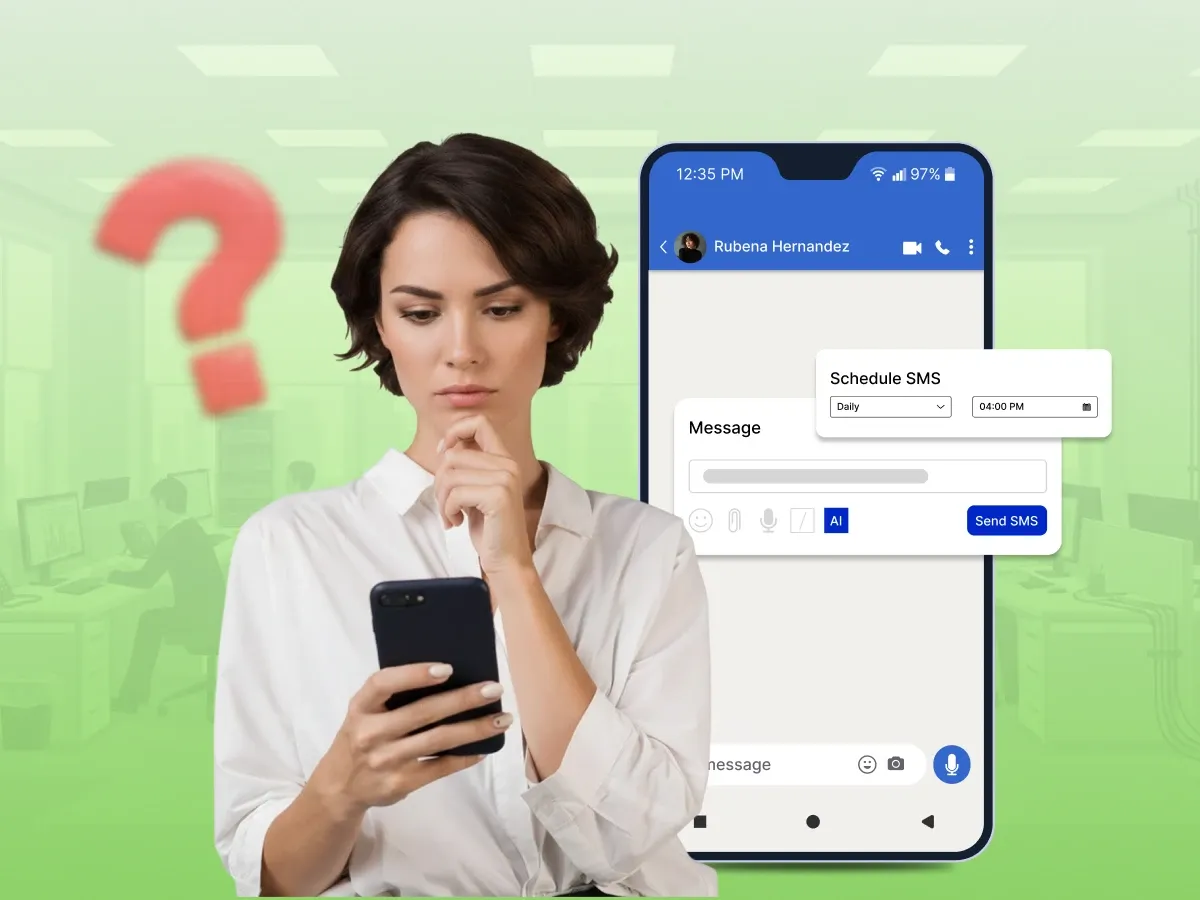
Text messaging scheduling lets you manually send text messages at the correct time. iPhone and Android have different approaches to this feature. Certain features are built into the phone, whereas others require apps or automation. This simplifies and enhances the reliability of timing messages in everyday use.
Do you forget to send messages at the right time? Or feel like your phone should handle it for you? This is a common need today.
People want to schedule a text message on iPhone and Android to stay organised and save effort. This is supported by both systems in various ways. The actions will vary depending on the device.
It can be done with built-in tools or with extra apps. Some methods are simple, while others need setup. Each one works differently.
In this blog, we will guide you through all the working options.
Using the Built-in iOS Features
Using Apple Shortcuts Automation
Using Third-Party Apps
Using Google Messages
Using Samsung Messages
Using the Google Calendar App
Using Third-Party Apps
Scheduling a text message means you write a message now but send it later. You choose a specific time for it to go out. The phone or app holds the message until that moment. Then it sends it without you doing anything. This helps you plan your communication better. It removes the need to remember the exact time to send it.
This feature works through built-in tools or external apps. Some phones offer direct scheduling in the messaging app. Others use automation tools to handle the timing. You set the message, date, and time before saving it. The system then waits until the right moment. After that, it delivers the message on its own.
Many iPhone users want a simple way to plan messages in advance. The message on iphones feature depends on the system version and available tools. Some options are built into iOS, while others need support from apps. This gives users different ways to handle scheduling text messages based on need.
Here you will learn three main ways to set up a scheduled text on iPhone. Each methods have a different mechanism. Some are built within the system, and some use external tools. Take things step by step to achieve higher results.
The built-in feature is only available on iOS 18 or above. It allows direct schedule send support inside the messages app. You can plan a text message on iphone without extra tools. It works best for simple personal use. It still depends on system settings.
To use this feature, follow the following steps.
Step 1: Open the Messages app.
Step 2: Go into any chat.
Step 3: Tap the (+) button next to the text field.
Step 4: Look for Send Later.
Step 5: Select the date and time
Step 6: Enter your message.
Step 7: Tap Send to schedule it.
This method works with the most recent iPhones. It uses the shortcuts app to create automation. You can control when the text on iphone goes out. It can be applied to recurring messages. The setup process requires a few minutes.
To set it up, follow the given steps.
Step 1: Open Shortcuts.
Step 2: Go to Automation, then tap +.
Step 3: Select Time of Day.
Step 4: Set the time and repeat the schedule.
Step 5: Tap Next, then Add action: Send Message.
Step 6: Choose the recipient, write the message, and tap Done.
Step 7: Turn off Ask Before Running (if available).
[Note: Some iOS versions still require confirmation before sending.]
This method is useful when built-in tools are limited. Many thirdparty apps help with text scheduling and reminders. They work by setting a future delivery time. Some also support recurring messages. You can find them on the App Store.
Some of the popular ones are listed below:
Kyew helps you plan a scheduled text easily. It works as a simple texting app for reminders. You can set messages for later dates. It supports basic scheduling feature options. You can pick contacts from your phone. It also helps manage sending scheduled messages. The scheduled app sends alerts before delivery. It is good for simple daily use.
This app is made for delayed messaging. It helps iPhone users plan texts in advance. You can set exact time slots. It supports both SMS and reminders. It works well for personal planning. It also supports mass texting use cases. You can manage multiple messages easily. It is useful for routine business communication.
This app to schedule texts helps automate timing. It works with texts and online messages. You can set reminders for contacts. It supports message scheduling for different needs. You can plan birthday or work messages. It also helps with appointment reminders. It helps to keep your messages organized and is easy to use by new users.
Many Android users look for a simple way to plan messages ahead. This is now built into most Android devices. You can schedule a text without keeping your phone active. It helps when timing matters for personal or work messages.
Here you will learn three easy ways to set up text on Android. Each method works slightly differently based on your phone model. There are those who use Google Messages and others the default texting app. The most effective way is to follow the steps.
This is the most popular among the users of Android phones. The Google Messages app has an inbuilt scheduling feature. It is compatible with most modern Android devices. You may select a specific date and time of delivery. It is easy and quick to use.
Follow the steps below to schedule a message.
Step 1: Open the Google Messages app on your phone.
Step 2: Start a new chat or open an existing one.
Step 3: Type your message in the text field.
Step 4: Press and hold the send your message icon.
Step 5: Select the schedule to send from the menu.
Step 6: Select the time and date to send the message.
This method works on Samsung Galaxy and other Galaxy phone models. It is built into the default Samsung Messages app. It allows easy message scheduling without extra tools. You can plan texts in seconds. It is useful for daily business communication.
Follow the steps below to use it.
Step 1: Open the Samsung Messages app on your phone.
Step 2: Tap on an existing chat or create a new one.
Step 3: Type your message in the text field.
Step 4: Tap the plus icon or options menu.
Step 5: Select the schedule message from the list.
Step 6: Choose the exact date and time and tap Done.
This method is useful when you want reminders with messages. It helps link calendar apps with texting plans. You can plan messages like appointments. It is helpful for work or personal reminders. It gives more control over timing.
Follow the steps below to use it.
Step 1: Open Google Calendar on your Android device.
Step 2: Tap the create button for a new event.
Step 3: Add your message details in the notes section.
Step 4: Set the exact date and time for the event.
Step 5: Add reminders app notifications for sending.
Step 6: Link the reminder with your messaging app.
This method is useful when built-in tools are not available. Many apps to schedule text tools exist on the Google Play Store. They help with recurring messages and reminders. Some also support business communication. You can use them for personal or work use.
Follow the steps below for popular apps.
SKEDit helps Android users automate messages. It supports sending scheduled texts easily. You can set contacts and time. It works for WhatsApp and SMS. It helps with business communication tasks. It allows repeating messages. It is simple for beginners. It improves the way users interact with communication automation tools.
This app helps you plan repeat messages. It is useful for reminders app style alerts. You can set daily or weekly timing. It supports text message scheduling for many contacts. It works well on most Android devices. It is helpful for personal tasks. It also supports group messages. It keeps communication organized.
This app helps manage automatic replies. It supports smart message scheduling options. You can send scheduled messages easily. It works for both SMS and chat apps. It is useful for busy users. It helps improve customer experience through timing. It allows message templates. It is good for simple automation use.
Both iPhone users and Android users want simple ways to plan messages ahead. The tools they use are not the same across devices. Each system gives different levels of control for scheduling text messages. There are those that are inbuilt, and others that require additional setup.
The comparison of the two devices is evident below.
| Features | iPhone | Android |
|---|---|---|
| Built-in Support | Limited and depends on the iOS version | Available in apps like Google Messages |
| Ease of Use | Needs setup with shortcuts or apps | Simple with built-in schedule send |
| Flexibility | Depends on automation tools | More control with native options |
| App Reliance | Often needs third-party apps | Works without extra apps on many phones |
Many users face small issues when they try to plan messages ahead. These problems usually happen due to settings or timing mistakes. You can fix most of them with simple checks.
These are the most frequent problems that individuals encounter when using scheduled messages. They all can be easily fixed, provided you know what to watch out for. To ensure your chats are on track, follow these tips.
This happens when the phone or app does not trigger the message on time. It can be caused by poor settings or background restrictions. Sometimes the system fails to process the request when the battery is too low.
How to Avoid It?
This issue happens when the message is set in the wrong time zone. It can delay or shift when the message is sent. This is common for travellers or remote workers.
How to Avoid It?
This problem appears when automation is turned off or restricted. It prevents the system from sending the message at the right time. It usually occurs when updates are done or when the phone is locked.
How to Avoid It?
Sometimes the send messages option is not visible in the app. It usually depends on the version or device model. Not all apps support this feature for every contact.
How to Avoid It?
This issue happens when apps cannot access SMS or contacts. It stops tools like customer engagement platforms from working. It also affects SMS marketing and planning tools.
How to Avoid It?
This happens when messages linked to social media do not match the correct timing. It can affect your efforts to send messages for marketing campaigns or alerts. It also impacts automated workflows across different apps.
How to Avoid It?
Managing your daily communication is easy with message scheduling. It will keep you on schedule without checking your phone again and again. You can plan messages for personal or work use. Both iPhone and Android offer useful options for this feature. Some are built in, while others need extra tools. It relies on the device that you are working with, and what is easier.
You are free to select the most appropriate approach. Android gives more direct options through default apps. iPhone users often rely on automation or apps. Both systems work well when set up correctly. Small checks like time and settings make a big difference. With the right setup, sending planned messages becomes smooth and reliable.
Yes, you can edit or remove a message in most apps before sending. You are allowed to open the scheduled message and correct the details. This is useful for fixing errors or adjusting timing.
It depends on how the message is set. Some messages need the internet, while others work without it. This is helpful when you plan appointment confirmations in advance.
The majority of apps are secure when downloaded from reliable stores. Always review the permissions of the apps. This would secure your data and privacy.
SMS usually works with most scheduling tools. iMessage support depends on the method you use. Some tools are better for simple texts or sending reminder tasks.
The message can be sent only when the phone is on in most cases. The system needs to stay active at the scheduled time. If the phone is off, the message may fail or be delayed.
